You can remove all the comments in a worksheet by performing the following steps:
1. On the Home tab, in the Editing group, click Find & Select and then click Comments.
2. In the Editing group, click Clear and click Clear Comments.
Feb 5, 2011
Show or hide all comments in Excel 2007
You can easily view all the comments that are present in your worksheet and once you had viewed, you can hide the comments. Perform the following steps to show or hide all comments in Excel 2007:
1. Open Microsoft Excel 2007 and open the workbook for which you need to view or hide the comments.
2. Click Review tab, in the Comments group, click Show All Comments to see all the comments. To hide all the comments, click the Show All Comments command again.
1. Open Microsoft Excel 2007 and open the workbook for which you need to view or hide the comments.
2. Click Review tab, in the Comments group, click Show All Comments to see all the comments.
Review comments in a workbook in Excel 2007
If your workbook has single or many sheet(s) with comments added to cells and you need to know the comments present in the workbook. Looking for the small red triangle in a cell that indicates comment in the entire worksheet and in the entire workbook might be a painful job. Fortunately Microsoft Excel provides a way to view all the comments at the same time or navigate through a single comment at a time.
To review all the comments in Excel 2007, perform the following:
1. Click Review tab.
2. Click Show All Comments to view all the comments. To view only one comment at a time, perform the following:
1. Click Review tab.
2. Click Previous or Next to view the previous comment or the next comment. Once you had reached the last comment, Microsoft Excel will notify you in a OK Cancel dialog box saying “Microsoft Excel reached the end of the workbook. Do you want to continue reviewing from the beginning of the workbook?”
To review all the comments in Excel 2007, perform the following:
1. Click Review tab.
2. Click Show All Comments to view all the comments.
1. Click Review tab.
2. Click Previous or Next to view the previous comment or the next comment.
Move or resize a comment in Excel 2007
When a long comment is added to a cell, the displayed text is of the comment box size. The rest of the content goes invisible. In this case, you have to resize the comment box. Other thing while viewing all the comments that are close to each other is the comments overlap each other and so the best option would be to move the comment. Perform the following steps to move or resize a comment:
1. Right-click the cell with the comment and click Edit Comment.
2. Do one of the following:
Change the size – Place the cursor near the handles (circles refer to handles) and drag it to a suitable size.
Move the comment – Place the cursor near the border of the comment box (not on the circles) and drag it. Once you had moved the comment to a new location and hover to the cell that has the comment, the comment will be placed in its default position. To view the comment in the moved position, from the Review tab, in the Comments group click Show/Hide Comment to view the comment.
1. Right-click the cell with the comment and click Edit Comment.
2. Do one of the following:
Change the size – Place the cursor near the handles (circles refer to handles) and drag it to a suitable size.
Move the comment – Place the cursor near the border of the comment box (not on the circles) and drag it.
Make a cell comment transparent in Excel 2007
By default, the cell comment is not transparent but you can apply transparency to a cell comment. Although it is not a good practice to apply full transparency to a cell comment as the information in the comment box and the information in the adjacent cells to the comment cell have the overlap text effect. The title of this post is to make a cell comment transparent and so to apply transparency, perform the following steps:
1. Right-click on the cell that contains the comment and click Edit Comment.
2. Right-click on the border of the comment box and click Format Comment...
3. From the Format Comment dialog box, click the Colors and Lines tab.
4. Under Fill, in the Transparency: box, enter a value in the spin control or drag the slider to the right.
5. Click OK.
1. Right-click on the cell that contains the comment and click Edit Comment.
2. Right-click on the border of the comment box and click Format Comment...
3. From the Format Comment dialog box, click the Colors and Lines tab.
4. Under Fill, in the Transparency: box, enter a value in the spin control or drag the slider to the right.
5. Click OK.
Excel 2007 opens workbooks showing all the comments. How to stop this?
By default in Excel 2007, when cell(s) have comments then you view the comments by hovering the mouse over the cell. If Excel 2007 displays all the comments when you open the workbook then the setting for the comments in the Excel Options dialog box had been changed to Comments and indicators. You have to change the setting to Indicators only, and comments on hover. There is a simple workaround for this. You can perform either of the two ways described below:
Change the setting from the Excel Options dialog box
1. Open Microsoft Excel.
2. Click the Microsoft Office Button and click Excel Options.
3. From the Excel Options dialog box, click Advanced from the left pane.
4. From the right pane, scroll down to the Display section. Click Indicators only, and comments on hover.
5. Click OK. Change the setting from the Review tab
1. Click the Review tab.
2. In the Comments group, click Show All Comments. If you close the workbook, Microsoft Excel will display the dialog box with the message “Do you want to save the changes you made to ‘nameOfWorkbook.xlsx’?”, click Yes.
Change the setting from the Excel Options dialog box
1. Open Microsoft Excel.
2. Click the Microsoft Office Button
and click Excel Options.3. From the Excel Options dialog box, click Advanced from the left pane.
4. From the right pane, scroll down to the Display section. Click Indicators only, and comments on hover.
5. Click OK.
1. Click the Review tab.
2. In the Comments group, click Show All Comments.
Edit a comment in Excel 2007
To edit the information in the comment box, perform the following steps:
1. Click on the cell that has the comment.
2. Click Review tab and click Edit Comment. Edit the comment according that meets your needs and once finished, click on any other cell. You can also right click on the cell and click Edit Comment.
1. Click on the cell that has the comment.
2. Click Review tab and click Edit Comment. Edit the comment according that meets your needs and once finished, click on any other cell.
Delete a comment in Excel 2007
To delete the comment in Excel 2007, perform the following steps:
1. Click the cell that contains the comment.
2. Click Review tab, in the Comments group, click Delete.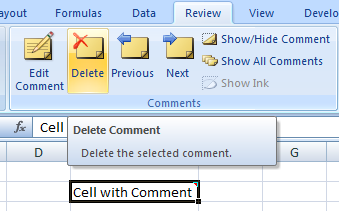 You can also delete a comment by right clicking the cell with comments and clicking Delete Comment.
1. Click the cell that contains the comment.
2. Click Review tab, in the Comments group, click Delete.
Comment indicator in a cell does not appear in Excel 2007
1. Open Microsoft Excel.
2. Click the Microsoft Office Button and click Excel Options.
3. From the Excel Options dialog box, click Advanced from the left pane.
4. From the right pane, scroll down to the Display section. Click Indicators only, and comments on hover.
5. Click OK.
2. Click the Microsoft Office Button
and click Excel Options.3. From the Excel Options dialog box, click Advanced from the left pane.
4. From the right pane, scroll down to the Display section. Click Indicators only, and comments on hover.
5. Click OK.
Change the shape of a comment box in Excel 2007
By default a rectangular box appears when you view a comment. You can change this shape to other shapes by performing the following steps:
1. Open Microsoft Excel.
2. Click the Microsoft Office Button and click Excel Options.
3. From the Excel Options dialog box,, from the left pane click Customize.
4. From the right pane, click the Choose commands from: dropdown box and click All Commands.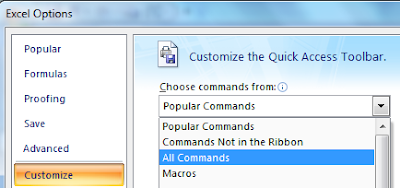 5. Scroll the list and click Edit Shape.
6. Click Add >> and then click OK. The Edit Shape will appear in the Quick Access Toolbar.
7. Right click on a cell that has the comment and then click Edit Comment.
8. Click the border of the comment.
9. Click the Edit Shape button from the Quick Access Toolbar and point to Change Shape. Click to select a shape from the available ones.
1. Open Microsoft Excel.
2. Click the Microsoft Office Button
and click Excel Options.3. From the Excel Options dialog box,, from the left pane click Customize.
4. From the right pane, click the Choose commands from: dropdown box and click All Commands.
6. Click Add >> and then click OK. The Edit Shape will appear in the Quick Access Toolbar.
7. Right click on a cell that has the comment and then click Edit Comment.
8. Click the border of the comment.
9. Click the Edit Shape button from the Quick Access Toolbar and point to Change Shape. Click to select a shape from the available ones.
Change the orientation of the text in a comment box in Excel 2007
You can change the orientation of the text in a comment box by performing the following steps:
1. Right click on a cell that has the comment and then click Edit Comment.
2. Right click the border of the comment box and click Format Comment...
3. From the Format Comment dialog box that opens, click the Alignment tab.
4. In the Orientation box, make the selection.
5. Click OK. Note:
Note:
Unlike the orientation applied to a cell, you do not have the freedom to orient the text with the degree precision thing.
1. Right click on a cell that has the comment and then click Edit Comment.
2. Right click the border of the comment box and click Format Comment...
3. From the Format Comment dialog box that opens, click the Alignment tab.
4. In the Orientation box, make the selection.
5. Click OK.
Unlike the orientation applied to a cell, you do not have the freedom to orient the text with the degree precision thing.
Change the font of a comment in Excel 2007
In Excel 2007, the Tahoma font is applied to a comment. You can select a different font and apply other settings related to the font like making the text bold or italic, changing the size and color of the font, underlining the text and more. Perform the following steps to do so:
1. Right click the cell that has the comment and then click Edit Comment.
2. Right click the border of the comment box and click Format Comment...
3. From the Format Comment dialog box that opens, click the Font tab.
a. To change the font, select a font from the Font: section.
b. To make the font appear as regular or bold or italic or bold italic, select from the Font style: section.
c. To change the size of the font, make a selection from the Size: box.
d. To make the text appear with a single underline or double underline or none, choose it from the
Underline: dropdown box.
e. Choose a color for the text from the Color: dropdown box.
4. Click OK.
1. Right click the cell that has the comment and then click Edit Comment.
2. Right click the border of the comment box and click Format Comment...
3. From the Format Comment dialog box that opens, click the Font tab.
a. To change the font, select a font from the Font: section.
b. To make the font appear as regular or bold or italic or bold italic, select from the Font style: section.
c. To change the size of the font, make a selection from the Size: box.
d. To make the text appear with a single underline or double underline or none, choose it from the
Underline: dropdown box.
e. Choose a color for the text from the Color: dropdown box.
4. Click OK.
Change the default name for new comments in Excel 2007
By default the user name that is specified for Excel 2007 appears when you create a new comment. To change this name, you have to change the user name for Excel 2007. Perform the following steps to do so:
1. Open Microsoft Excel.
2. Click the Microsoft Office Button and click Excel Options.
3. From the Excel Options dialog box, from the left pane click Popular (by default this tab is selected, if is not selected then click to select it).
4. From the right pane, under Personalize your copy of Microsoft Office, enter a name in the User name: box.
5. Click OK. Now when you add a new comment, the name that you entered in the User name: box will appear as the default name for the new comments.
1. Open Microsoft Excel.
2. Click the Microsoft Office Button
and click Excel Options.3. From the Excel Options dialog box, from the left pane click Popular (by default this tab is selected, if is not selected then click to select it).
4. From the right pane, under Personalize your copy of Microsoft Office, enter a name in the User name: box.
5. Click OK.
Feb 4, 2011
Change the color of the comment box in Excel 2007
By default a light yellow colored background appears for a comment box. You can change the color of the comment box by performing the following steps:
1. Right click the cell that has the comment and then click Edit Comment.
2. Right click the border of the comment box and click Format Comment...
 3. From the Format Comment dialog box that opens, click the Colors and Lines tab.
4. Under Fill, click the Color: dropdown box and select a color.
a. You can also choose more colors by clicking More Colors...
b. Choose a color and click OK.
 5. Click OK.
1. Right click the cell that has the comment and then click Edit Comment.
2. Right click the border of the comment box and click Format Comment...
4. Under Fill, click the Color: dropdown box and select a color.
a. You can also choose more colors by clicking More Colors...
b. Choose a color and click OK.
Copy comments to other cells in Excel 2007
You add a comment in a particular cell and want the same comment to appear in multiple cells. You can copy the contents of the cell that has the comment and during the paste time you have to choose the option of pasting the comments. Performing the following steps to paste comments:
1. Click a cell that has the comment and press Ctrl + C or from the Home tab, click Copy from the Clipboard group.
2. Click the cell that needs the comment to be pasted and then press Ctrl + Alt + V or from the Home tab, click the arrow mark that is present in Paste and click Paste Special...
3. From the Paste Special dialog box that opens, click Comments.
4. Click OK.
1. Click a cell that has the comment and press Ctrl + C or from the Home tab, click Copy from the Clipboard group.
2. Click the cell that needs the comment to be pasted and then press Ctrl + Alt + V or from the Home tab, click the arrow mark that is present in Paste and click Paste Special...
3. From the Paste Special dialog box that opens, click Comments.
4. Click OK.
Ctrl + Alt + V (Ctrl Alt V) is the keyboard shortcut to open the Paste Special dialog box.
Add a picture to the comment box in Excel 2007
When you view a comment, a yellow colored background appears with no pictures. You can add a picture to a comment box by performing the following steps:
1. Right click on a cell that has the comment and then click Edit Comment.
2. Right click the border of the comment box and click Format Comment...
3. From the Format Comment dialog box that opens, click the Colors and Lines tab.
4. Under Fill, click the Color: dropdown box and Fill Effects...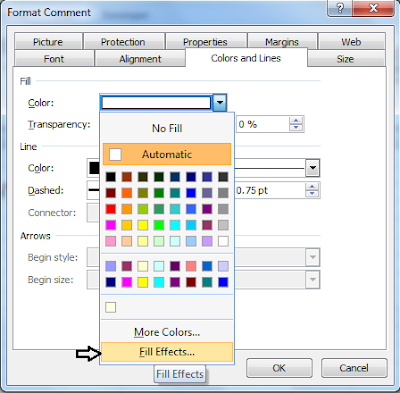 5. From the Fill Effects dialog box that opens, click the Picture tab.
6. Click Select Picture... 7. Select a picture and click Insert.
8. Click OK twice.
1. Right click on a cell that has the comment and then click Edit Comment.
2. Right click the border of the comment box and click Format Comment...
3. From the Format Comment dialog box that opens, click the Colors and Lines tab.
4. Under Fill, click the Color: dropdown box and Fill Effects...
6. Click Select Picture...
8. Click OK twice.
Add a comment in Excel 2007
You add a comment to a cell to provide meaningful information to the data that is present in the cell. For example, to describe from where the value of the cell came, what is the purpose of the value of the cell and so on.
To add a comment, perform the following:
1. Click the cell for which you need to add a comment.
2. On the Review tab, in the Comments group, click New Comment.
3. In the Comment box, type the information. Once the information is entered, click on any other cell in the worksheet.
 When a cell contains a comment then an indicator appears in the corner of the cell. There are other ways to add a comment. Few are:
A. Press Shift + F2.
B. Right click on a cell and click Insert Comment.
To add a comment, perform the following:
1. Click the cell for which you need to add a comment.
2. On the Review tab, in the Comments group, click New Comment.
3. In the Comment box, type the information. Once the information is entered, click on any other cell in the worksheet.
A. Press Shift + F2.
B. Right click on a cell and click Insert Comment.
Subscribe to:
Posts (Atom)