Topics

Mar 14, 2011

Show or hide Developer tab in the Ribbon in Excel 2007

By default, the Developer tab is not visible. The Developer tab contain commands that are used to write and run macros, write and view code for Office applications, view the properties, and more. Perform the following steps to show or hide the Developer tab in Excel 2007:
1. Open Microsoft Excel.
2. Click the Microsoft Office Button and click Excel Options.
3. From the Excel Options dialog box, click Popular from the left pane.
4. From the right pane, under Top options for working with Excel, do one of the following:
To show the developer tab in the Ribbon: Click to place a checkmark besides Show Developer tab in the Ribbon.
To hide the developer tab in the Ribbon: Click to remove the checkmark besides Show Developer tab in the Ribbon.
5. Click OK.

Change the color scheme in Excel 2007

Blue is the default color scheme in Excel and other Office programs. You can change the color scheme to Black or Silver. Perform the following steps to change the color scheme in Excel 2007:
1. Open Microsoft Excel.
2. Click the Microsoft Office Button and click Excel Options.
3. From the Excel Options dialog box, click Popular from the left pane.
4. From the right pane, under Top options for working with Excel, click the Color scheme: dropdown box and make a selection.
5. Click OK.

Mar 6, 2011

Unable to drag page breaks in Page Break Preview in Excel 2007

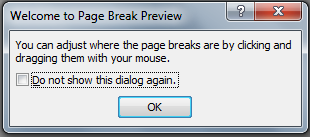
When you try to adjust the page breaks, you see the Welcome to Page Break Preview dialog box that says You can adjust where the page breaks are by clicking and dragging them with your mouse. You click OK but you are unable to adjust the page breaks.
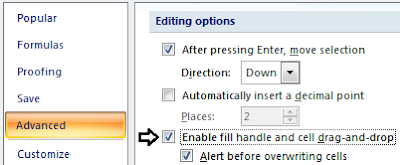
The cause for this is the Enable fill handle and cell drag-and-drop check box is cleared. Perform the following to check the Enable fill handle and cell drag-and-drop check box so as to drag page breaks in Page Break Preview:
1. Open Microsoft Excel.
2. Click the Microsoft Office Button and click Excel Options.
3. From the Excel Options dialog box, click Advanced from the left pane.
4. From the right pane, under Editing options, click to place a check mark besides Enable fill handle and cell drag-and-drop.
5. Click OK.

Mar 3, 2011

Show or hide the mini toolbar in Excel 2007

If you select some text in a cell then by default a mini toolbar appears that allows you to change the font, font size, color of text, apply the bold, italic or underline style within the worksheet area. If you feel this is an annoying feature then you can turn off the mini toolbar. Also, you can turn it on again. Perform the following steps to show or hide the mini toolbar:
1. Open Microsoft Excel.
2. Click the Microsoft Office Button and click Excel Options.
3. From the Excel Options dialog box, click Popular from the left pane.
4. From the right pane, under Top options for working with Excel, do one of the following:
  • To hide the mini toolbar, click to remove the checkmark besides Show Mini Toolbar on selection.
  • To show the mini toolbar, click to place a checkmark besides Show Mini Toolbar on selection.
5. Click OK.

Note:
If the Show Mini Toolbar on selection option is turned on or off, the mini toolbar will still appear if you right click on a cell or on the selected text.