The contents in an active cell get displayed in the Formula Bar and is placed just below the Ribbon. The Formula Bar displays text, number or data exactly as it is entered in a cell. What if you entered a formula in a cell. The answer is, the calculated value is displayed in the cell and the formula is displayed in the Formula Bar.
For some reasons if you decide to hide the formulas then one of the ways to do is to hide the Formula Bar. This action is reversible and you can view the Formula Bar if it is hidden. Perform the following steps to show or hide the Formula Bar:
1. Open Microsoft Excel.
2. Click the Microsoft Office Button and click Excel Options.
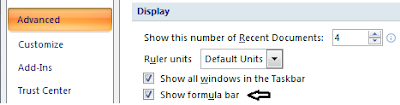
3. From the Excel Options dialog box, click Advanced from the left pane.
4. From the right pane: scroll down, under Display, do one of the following:
To show the Formula Bar: Click to place a checkmark besides Show formula bar.
To hide the Formula Bar: Click to remove the checkmark besides Show formula bar.
5. Click OK.
For some reasons if you decide to hide the formulas then one of the ways to do is to hide the Formula Bar. This action is reversible and you can view the Formula Bar if it is hidden. Perform the following steps to show or hide the Formula Bar:
1. Open Microsoft Excel.
2. Click the Microsoft Office Button
and click Excel Options.3. From the Excel Options dialog box, click Advanced from the left pane.
4. From the right pane: scroll down, under Display, do one of the following:
To show the Formula Bar: Click to place a checkmark besides Show formula bar.
To hide the Formula Bar: Click to remove the checkmark besides Show formula bar.
5. Click OK.

