Topics

Mar 10, 2011

Format text as subscript or superscript in Excel 2007

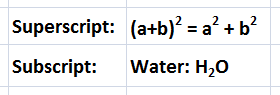
Subscripts and superscripts are used in formulas, mathematical expressions, chemical formulas, and more. Superscripts appear above the baseline and subscripts appear below the baseline. You can apply subscript or superscript formatting to the entire cell, range of cells or some characters in a cell.

To apply the subscript or superscript format, perform the following:
1. Select the cell or the text for which you need to apply the strikethrough format.
2. On the Home tab, in the Font group, click the Font dialog box launcher.
3. Under Effects, click to place a checkmark besides Superscript or Subscript.
4. Click OK.

Note:
You can apply the formatting to either Superscript or Subscript but not both.

Strikethrough format in Excel 2007

The strikethrough format is drawing a horizontal line through the middle of the text, numbers, or date values. You can select the entire cell, range of cells or some characters in a cell and apply the strikethrough formatting.

To apply the strikethrough format, perform the following:
1. Select the cell or the text that you need to apply the strikethrough format.
2. On the Home tab, in the Font group, click the Font dialog box launcher.
3. Under Effects, click to place a checkmark besides Strikethrough.
4. Click OK.

Keyboard Shortcut: Press CTRL + 5 to apply or remove strikethrough formatting.

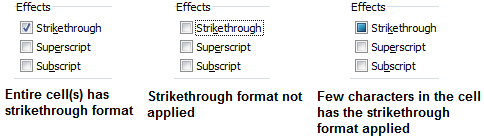
There are 3 states for the Strikethrough checkbox:
1. If the entire cell(s) has the strikethrough formatting, a tick mark appears besides Strikethrough.
2. If the strikethrough formatting is not applied then the tick mark does not appear besides Strikethrough.
3. If some characters in a cells has the strikethough formatting then the checkbox is filled with a blue color.

Mar 9, 2011

Shrink text to fit in a cell in Excel 2007

If the text in a cell is too long then some part of the text will be hidden if you type text in the cell that is to the right. There are few workarounds like increasing the column width, increasing the row height and wrapping the text, and shrinking the text to fit in the cell.

Regarding shrinking the text, Excel automatically changes the size of the characters to fit the data in the cell. We will perform the following steps to shrink the text:

1. Click the cell(s) that has the data that is too long.
2. On the Home tab, in the Font group, click the Font dialog box launcher.
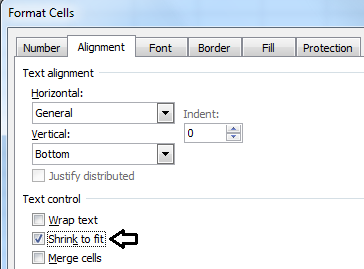
3. In the Format Cells dialog box, click the Alignment tab. Under Text control, click to place a checkmark besides Shrink to fit.
4. Click OK.

Feb 6, 2011

Change the default font and font size in Excel 2007

Excel 2007 uses Calibri font of size 11 point by default. You can change this default font and size so that the font that you select becomes the default font for the new workbooks. Perform the following steps to do so:
1. Open Microsoft Excel.
2. Click the Microsoft Office Button and click Excel Options.
3. From the Excel Options dialog box, click Popular from the left pane.
4. From the right pane, under the When creating new workbooks section, click the Use this font: dropdown box to select a font and then click the Font size: dropdown box to select the font size.
5. Click OK.
You can also enter the font size if the font size that you like to choose is not available - Example 15.