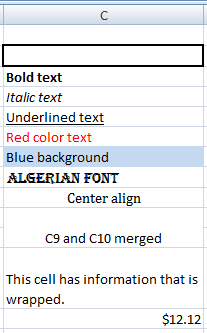
 You can copy the format of entire column(s) including column width, number format in the cells, text format in the cells, borders, fill and apply it to other columns.
 In the image to the right, column C is 200 pixels wide. Cell C2 has Thick Box Border. Cells C3 to C9 has the information about the format as provided in the image. Cells C9 and C10 are merged. Cell C11 has wrapped text, and cell C12 has the Currency format.
When you copy the format, all details excluding the data in the cells are copied. Perform the following steps to copy the format of the entire column:
1. Click column heading C. The entire column will be selected.
2. On the Home tab, in Clipboard group, click Format Painter

3. Click any column header (Example: E).
Column E will have the formats exactly that of column C.
 In Office Clipboard, you have an option called Show Status Near Taskbar When Copying. When this option is checked, you will see a tooltip near the taskbar whenever you copy data. When you turn off this option then the tooltip will not appear.
 1. On the Home tab, in the Clipboard group, click the Clipboard Dialog Box Launcher.
 2. Click Options and do one of the following:
 on the taskbar then the Show Office Clipboard Icon on Taskbar option in the Office Clipboard pane has a checkmark besides it. If you remove the checkmark then the Office Clipboard icon will not appear on the taskbar.
  2. Click Options and do one of the following:
 .
.  button gets disabled.
 To resize the Office Clipboard, click the Task Pane Options button which is represented by a DOWN arrow and click Size. The mouse cursor changes to Horizontal Resize
  . Move the mouse towards left or right. Once you had resized, click the mouse to set it.
 1. Click the Task Pane Options button which is represented by a DOWN arrow and click Move or press F6 function key, press CTRL + SPACEBAR to activate the menu. The Move option is highlighted, press ENTER key. The mouse cursor changes to the Move pointer
  .
. Click the Close button: In the Office Clipboard Task pane, click the Close button.
 Close from the menu: Click the down arrow that is besides the Close button. From the menu that appears, click Close.
 1. View the Office Clipboard Task Pane: On the Home tab, in the Clipboard group, click the Clipboard Dialog Box Launcher to see the Office Clipboard Task Pane.
 Delete an item: Click the arrow next to the item that you need to delete. Click Delete.