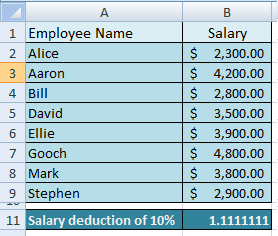
 For the operation Divide in the Paste Special section, we will consider an example where 8 employees with their salaries are provided in the figure at the right. The company decides to deduct 10% salary from all the employees.
The salary of Alice after 10% deduction will be $2,070. This is obtained by multiplying 0.9 times Alice salary or dividing the salary of Alice by 1.1111111. Since we are dealing with the Divide operation, we will divide the salary of Alice by 1.1111111. Aaron will get $3,780 and so on.
To achieve this, you will do the manual operation of dividing the salary of each employee with 1.1111111 and then the calculated number will be re-entered in the current salary cells. Suppose, there are thousands of employees then it will be a tedious job to divide the salary 1.1111111 times and then replacing it in the current salary cells. The simplest way to do is using the Divide operation provided in the Paste Special.
 Perform the following to deduct the salary by 10% from all the employees:
1. Click cell B11 (this cell contains the value 1.1111111) and click Copy or press CTRL + C.
2. Click cell B2 and press the SHIFT key. Keeping the SHIFT key in the pressed state, click cell B9. This will select the salaries of all the employees.
3. On the Home tab, in the Clipboard group, click the down arrow in the Paste command and click Paste Special...
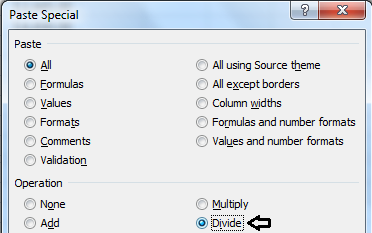 4. In the Paste Special dialog box, under Operation, click Divide and click OK.
You will see a 10% deduction from all the employees.
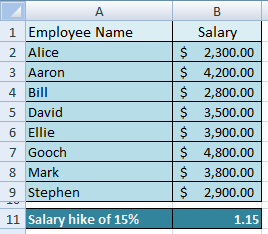 For the operation Multiply in the Paste Special section, we will consider an example where 8 employees with their salaries are provided in the figure at the right. The company decides to provide a hike of 15% to all the employees.
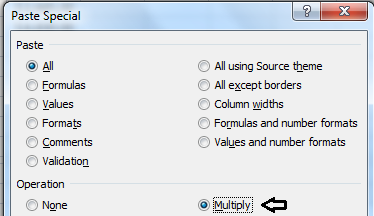 4. In the Paste Special dialog box, under Operation, click Multiply and click OK.
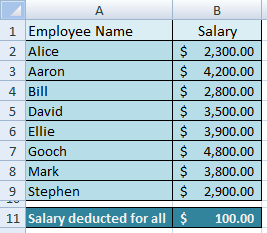 For the operation Subtract in the Paste Special section, we will consider an example where 8 employees with their salaries are provided in the figure at the right. The company decides to deduct $100 from all the employees.
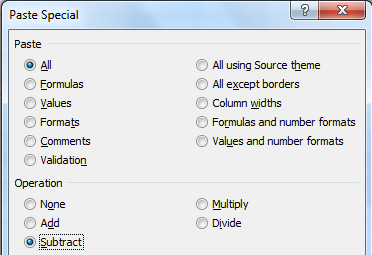 4. In the Paste Special dialog box, under Operation, click Subtract and click OK.
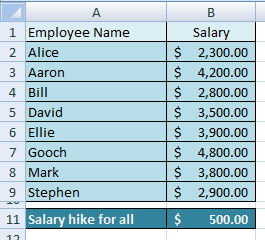 The operation Add will add the copied data with the destination cells. For operation Add in the Paste Special section, we will consider an example where 8 employees with their salaries are provided in the figure at the right. The company decides to provide a hike of $500 for all the employees.
 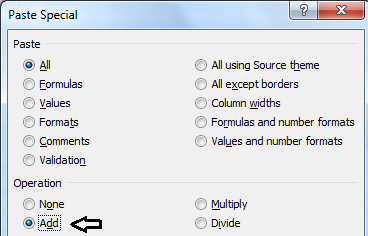 4. In the Paste Special dialog box, under Operation, click Add and click OK.