Topics

Apr 10, 2011

Entering data in a single cell in Excel 2007

Click a cell to select it. The selected cell is called the active cell. Data is entered in the active cell. In a worksheet, there is only one active cell and is identified by the thick border.
You type data directly in the cell or you type it from the Formula bar. Once the data is typed, you have to complete the entry or else the cell will be left blank. To complete the entry, press one of the arrow keys in the keyboard or press the TAB or ENTER key.

Things to remember
  • Pressing the Esc key will not complete the entry and the cell will be left blank.
  • To make the data available at all times, you have to save the workbook.

Apr 8, 2011

Enter data into a block of cells in Excel 2007

To enter data into a block of cells, select a block of cells. Off all the cells, the first cell will be the active cell. Do not click the active cell. Start typing, the data will be entered into the active cell. Once you had entered the data, press the ENTER key to move to the next cell. Again do not click the cell, just type the data and press the ENTER key. Perform the same for all the cells.
When you press the ENTER key repeatedly, blank cell entries are made. When the last cell in the block becomes the active cell and you press the ENTER key, the first cell in the block becomes the active cell. Stop entering data or else the data will be replaced in the first cell.
Note:
Although the arrow keys perform the operation of moving to the next cell, when you press the arrow keys (UP or DOWN or LEFT or RIGHT), the selection of the cells gets lost.

Enter the same data into multiple cells at the same time in Excel 2007

To enter the same data into multiple cells, select the cells first. The selection can be an entire worksheet, entire row(s) (adjacent or nonadjacent), entire column(s) (adjacent or non-adjacent), range of cells, nonadjacent cells or a combination of all except the entire worksheet.
Once the selection of the cells is over, with the highlight color of cells still present, you will have one cell as the active cell. Do not click the active cell. Type data, it will be entered in the active cell.
Note:
Do not press the ENTER key as pressing the ENTER key will make the next cell as the active cell.
Press the CTRL and ENTER keys. You will see the same data being copied to all the cells in the selected area.

How many ways are there to complete an entry in the current cell in Excel 2007?

There are few ways that we can use to enter data in a cell and are discussed below:
  • Entering the data in the Formula bar and pressing the Enter key or clicking the Enter button (it has the tick mark).
  • Entering the data directly in a cell and pressing the TAB key or pressing the ARROW (LEFT, RIGHT, UP, DOWN) keys or pressing the ENTER key.

What data can I enter in a cell in Excel 2007?

A cell can hold any of the three basic types of data namely numbers, text, and formulas.
Numbers – You can enter numbers with fractional and without fractional parts. Date, or time entered in a cell is also treated as number. By default, the numbers are aligned to the right.
Text – Any string that you enter or a number preceded by an apostrophe (e.g., ‘123) is treated as text. By default, text is aligned to the left.
Formulas – Formulas performs calculations and returns a result. You enter a formula by typing the equals sign and then completing the syntax for the formula. If the result returned is a number then it will be aligned to the right and if the result is text value then it will be aligned to the left.

Changes in the Cell Mode on the Status bar when you enter data in Excel 2007

When working on data entry, the status of the data in the cell is notified by the Cell Mode. There are 3 states namely Ready, Edit, and Enter.
When you click on a cell, you will see Ready in the left most side of the Status bar. When you hover the mouse over Ready, you will see the description as In Ready Mode.
When you start typing some data in a cell, you will see the display of the Cell Mode change to Enter.
When you click a cell that has data and edit the contents, the cell Mode changes to Edit.
Note:
You can hide the Cell Mode description on the status bar by right clicking on the Status bar and clicking to remove the checkmark besides Cell Mode.

Changes in the Formula bar when you enter data

When entering data in a cell, two buttons appear in the formula bar namely Cancel and Enter. To make the data entry complete, click the Enter button (the button with the tick mark). To undo the data entry, click the Cancel button (the button with the cross mark).
The keyboard equivalent for Cancel button is the Esc key and the equivalent for the Enter button is the Enter key.

Feb 7, 2011

Enter multiple lines of text in a cell in Excel 2007

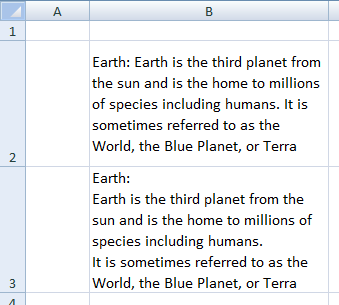
When you type long text in a cell, you use the Wrap Text option to make that information available in multiple lines and within a specified column width. You have achieved some degree of customization but if you need a bit more then you can make the text appear with the line breaks applied wherever needed. See the following diagram for a better understanding:
For applying line breaks, press the Alt + Enter keys. In the example, copy the text from cell B2 and paste in cell B3. In cell B3, after Earth:, press the Alt + Enter keys and after humans. press the Alt + Enter keys.