Topics

Mar 15, 2011

Edit a custom list in Excel 2007

To edit a custom list, perform the following steps:
1. Open Microsoft Excel.
2. Click the Microsoft Office Button and click Excel Options.
3. From the Excel Options dialog box, click Popular from the left pane.
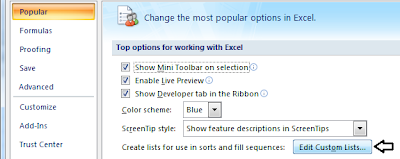
4. From the right pane, under Top options for working with Excel, click the Edit Custom Lists... button to open Custom Lists dialog box.
5. Click the list that you need to edit from the Custom lists: box (In our case, we will edit the list that has the entries Access, Excel, PowerPoint, and Word).
The list entries will appear in the List entries: box.
6. Change the entry Word to Word 2007. Click Add.
7. Click OK twice.

Delete a custom list in Excel 2007

To delete a custom list, perform the following steps:
1. Open Microsoft Excel.
2. Click the Microsoft Office Button and click Excel Options.
3. From the Excel Options dialog box, click Popular from the left pane.
4. From the right pane, under Top options for working with Excel, click the Edit Custom Lists... button to open Custom Lists dialog box.
5. Click the list that you need to delete from the Custom lists: box (In our case, we will delete the list that has the entries Access, Excel, PowerPoint, and Word).
6. Click Delete.
7. Click OK twice.

Create a custom list in Excel 2007

There are lists that are built-in in Excel like the days of the week, month names. You can also create your own lists. Perform the following steps to create a custom list in Excel 2007:
1. Open Microsoft Excel.
2. Click the Microsoft Office Button and click Excel Options.
3. From the Excel Options dialog box, click Popular from the left pane.
4. From the right pane, under Top options for working with Excel, click the Edit Custom Lists... button to open Custom Lists dialog box.
5. We will add a list that has the entries Access, Excel, PowerPoint, and Word. Place your mouse in the List entries: box and click to see the mouse cursor blinking in the box.
6. Type Access and press the Enter key. After making an entry press the Enter key to type the next entry name. Fill the list by typing the four entries.
7. Once you had finished entering the four names, click Add.
8. Click OK twice.
Create a custom list by importing data from cells in Excel 2007

We will have the following data in the cells A1 - Access, A2 - Excel, A3 - PowerPoint, and A4 - Word. Perform the following steps to add a custom list by importing data from cells.
1. Open Microsoft Excel.
2. Click the Microsoft Office Button and click Excel Options.
3. From the Excel Options dialog box, click Popular from the left pane.
4. From the right pane, under Top options for working with Excel, click the Edit Custom Lists... button to open Custom Lists dialog box.
5. Click the Import list from cells: button.
6. Select cells A1 to A4 to select Access, Excel, PowerPoint, and Word and press the Enter key.
7. Click Insert and click OK twice.