When you add commands to the Quick Access Toolbar, the command that is added at the last appears at the right most area in the Quick Access Toolbar. To rearrange the commands in the Quick Access Toolbar, perform the following steps:
1. Click the Microsoft Office Button and click Excel Options.
2. In the Excel Options dialog box, click Customize from the left pane.
3. In the right pane, click a command from the list that is in the right list box.
4. Click the Move Up or Move Down buttons to rearrange the commands.
5. Continue steps 3 and 4 for other commands. 6. Once you are done, click OK.

1. Click the Microsoft Office Button
and click Excel Options.2. In the Excel Options dialog box, click Customize from the left pane.
3. In the right pane, click a command from the list that is in the right list box.
4. Click the Move Up or Move Down buttons to rearrange the commands.
5. Continue steps 3 and 4 for other commands. 6. Once you are done, click OK.


 You can add the Cell Styles gallery to the Quick Access Toolbar by performing the following steps:
 does not appear on the Quick Access Toolbar. You have the Undo and Redo commands on the Quick Access Toolbar. You can add the Repeat command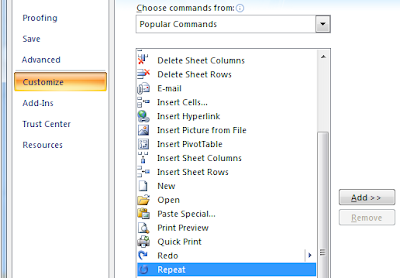
 To move the QAT below the Ribbon, perform the following steps:
 To move the QAT to the right of the Microsoft Office Button, perform the following steps: