Topics

Feb 5, 2011

Make Internet Explorer 8 as the default browser in Windows 7

To make Internet Explorer as the default browser, perform the following:
1. Open Internet Explorer.
2. If you see the message Internet Explorer is not currently your default browser. Would you like to make it your default browser?
3. Click Yes. Now, Internet Explorer is set as the default browser.

If you do not see the message box then perform the following:
1. Open Internet Options by clicking or , and clicking on Internet Options.
You may also press Alt + T + O.
2. Click Programs tab, click Make default.
3. Click Apply and then click OK.

Make Close all tabs message box to appear while closing Internet Explorer 8 in Windows 7

If Tabbed Browsing is enabled in Internet Explorer 8 and when you close an Internet Explorer window that has multiple tabs, a message box appears as shown in the figure to the right.
If you had placed a check mark beside Always close all tabs then the message box will not appear while closing the Internet Explorer window.
To make the message box appear again, perform the following:

1. Open Internet Options by clicking or , and clicking on Internet Options.
You may also press Alt + T + O.
2. In General tab, under Tabs section, click Settings button.
3. In the Tabbed Browser Settings dialog box, Click to place a check mark beside Warn me when closing multiple tabs.
4. Click OK to close the Tabbed Browser Settings dialog box.
5. Click Apply and then click OK to close the Internet Options dialog box.

Make Close all tabs message box to appear while closing Internet Explorer 8 in Windows 7

If Tabbed Browsing is enabled in Internet Explorer 8 and when you close an Internet Explorer window that has multiple tabs, a message box appears as shown in the figure to the right.
If you had placed a check mark beside Always close all tabs then the message box will not appear while closing the Internet Explorer window.
To make the message box appear again, perform the following:

1. Open Internet Options by clicking or , and clicking on Internet Options.
You may also press Alt + T + O.
2. In General tab, under Tabs section, click Settings button.
3. In the Tabbed Browser Settings dialog box, Click to place a check mark beside Warn me when closing multiple tabs.
4. Click OK to close the Tabbed Browser Settings dialog box.
5. Click Apply and then click OK to close the Internet Options dialog box.

Remove the preview for individual tabs in the taskbar for Internet Explorer 8 in Windows 7

If multiple tabs are opened in a single Internet Explorer window then by default, you can see a preview of each tab when you hover the mouse over the Internet Explorer button on the taskbar. You can change this behavior and have only one entry to preview for one Internet Explorer window. Perform the following steps to do so:
1. Open Internet Options by clicking or , and clicking on Internet Options.
You may also press Alt + T + O.
2. In General tab, under Tabs section, click Settings button.
3. In the Tabbed Browser Settings dialog box, Click to remove the check mark beside Show previews for individual tabs in the taskbar*.
4. Click OK to close the Tabbed Browser Settings dialog box.
5. Click Apply and then click OK to close the Internet Options dialog box.

Show or hide Command Bar in Internet Explorer 8

By default, the Command Bar is visible in Internet Explorer 8. You may make the Command Bar hide or view if the Command Bar is hidden. To do so, perform the following:
1. Open Internet Explorer.
2. Press Alt key from the keybaord and click View menu or click or (You may also press Alt + T from the keyboard), hover the mouse pointer over Toolbars and do the following:
  • To hide the Command Bar, click to remove the checkmark beside Command Bar
  • To view the Command Bar, click to place the checkmark beside Command Bar

How to remove or uninstall Internet Explorer 8 from Windows 7?

If you are not comfortable using Internet Explorer 8, you may remove it by turning off this Windows feature. Doing this will not completely remove Internet Explorer 8 instead it remains in the computer so that you may turn on later. To remove or uninstall Internet Explorer 8, perform the following:
1. Click Start button and then click Control Panel.
2. If the View by: is Category then click on Programs. If the View by: is Large icons or Small icons, click on Programs and Features.
3. Click Turn Windows features on or off (If you are prompted for an administrator password or confirmation, type the password or provide confirmation).
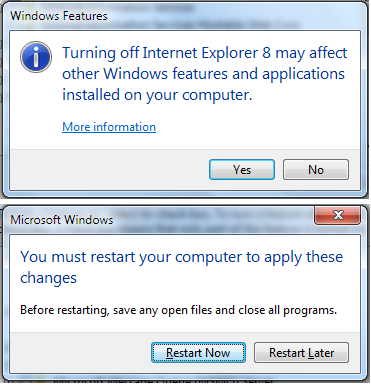
4. Click the checkmark beside Internet Explorer 8. You will see a message saying Turning off Internet Explorer 8 may affect other Windows features and applications installed on your computer. information box, click Yes.
5. Click OK.
6. Wait until you see a message box saying You must restart your computer to apply these changes. Click Restart Now.
7. During shutdown and restart, you will see Configuring Windows features. After computer restart, the uninstallation or removal process of Internet Explorer 8 is over.
To install or to turn on Internet Explorer 8, follow the steps provided above except that in Step 4, click to place a checkmark beside Internet Explorer 8.

Delete temporary Internet files in Internet Explorer 8

Internet Explorer 8 stores webpages in Temporary files folder. Storing these files takes up space. You have to clear these files in order to free up space on your computer. To delete temporary Internet files, perform the following steps:
1. Open Internet Explorer.
2. Press Alt + T + O to open Internet Options dialog box.
You may also click or and then click Internet Options.
3. Click General tab. Under Browsing history, click Delete...
4. From the Delete Browsing History dialog box, click to place checkmar beside the items to delete. If you uncheck the items, they will not be deleted.
5. Click Delete.

How to enable or disable tabbed browsing in Internet Explorer 8?

Tabbed browsing is a feature in Internet Explorer 8 that helps you to open links or websites in a single browser window. You do this by opening webpages in new tabs. The primary use of tabbed browsing is to reduce the number of Internet Explorer windows on the taskbar. You can enable the tabbed browsing feature or if you feel that a webpage in a single browser window will satisfy your needs then you may disable tabbed browsing feature. Perform the following steps to enable or disable tabbed browsing in Internet Explorer 8:
1. Open Internet Explorer.
2. Press Alt + T + O to open Internet Options dialog box.
You may also click or and then click Internet Options.
3. Click General tab. In the Tabs section, click Settings button to open Tabbed Browsing Settings dialog box.
4. Do one of the following:
To enable tabbed browsing : Click to place the checkmark beside Enable Tabbed Browsing (requires restarting Internet Explorer).

To disable tabbed browsing : Click to remove the checkmark beside Enable Tabbed Browsing (requires restarting Internet Explorer).

5. Click OK to close Tabbed Browsing Settings dialog box.
6. Click OK again to close Internet Options dialog box.
7. Restart Internet Explorer for the changes to take effect.

Move the Stop and Refresh buttons in Internet Explorer 8

In Internet Explorer 8, the Stop and Refresh buttons appear after the Address bar as shown in the figure below. You can adjust this setting and have Stop and Refresh buttons appear before the Address bar.
To move the Stop and Refresh buttons before Address bar, perform the following:

Right-click on the Command Bar and hover the mouse over Customize and click Show Stop and Refresh Buttons before Address Bar.

If you do not see the Command Bar then press Alt + V + T + C keys.

How to enable or disable tabbed browsing in Internet Explorer 8?

Tabbed browsing is a feature in Internet Explorer 8 that helps you to open links or websites in a single browser window. You do this by opening webpages in new tabs. The primary use of tabbed browsing is to reduce the number of Internet Explorer windows on the taskbar. You can enable the tabbed browsing feature or if you feel that one webpage in a single browser window satisfies your needs then you may disable tabbed browsing feature. Perform the following steps to enable or disable tabbed browsing in Internet Explorer 8:
1. Open Internet Explorer.
2. Press Alt + T + O to open Internet Options dialog box.
You may also click or and then click Internet Options.
3. Click General tab. In the Tabs section, click Settings button to open Tabbed Browsing Settings dialog box.
4. Do one of the following:
To enable tabbed browsing : Click to place the checkmark beside Enable Tabbed Browsing (requires restarting Internet Explorer).
To disable tabbed browsing : Click to remove the checkmark beside Enable Tabbed Browsing (requires restarting Internet Explorer).
5. Click OK to close Tabbed Browsing Settings dialog box.
6. Click OK again to close Internet Options dialog box.
7. Restart Internet Explorer for the changes to take effect.
