Topics

Feb 10, 2011

Show or hide vertical scroll bar in Excel 2007

By default the vertical scroll bar appears even if you open a blank workbook. If your worksheet has a large data then the horizontal scroll bar will help you to scroll up or down. If you feel comfortable navigating in the worksheet through keyboard then you may hide the vertical scrollbar. This action can be reversed and you can make the vertical scrollbar visible whenever needed by perform the following steps:
1. Open Microsoft Excel.
2. Click the Microsoft Office Button and click Excel Options.
3. From the Excel Options dialog box, click Advanced from the left pane.
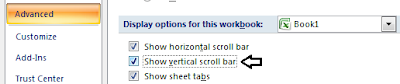
4. From the right pane, under Display options for this workbook:, do one of the following:
    To show the vertical scroll bar: Click to place a checkmark besides Show vertical scroll bar.
    To hide the vertical scroll bar: Click to remove the checkmark besides Show vertical scroll bar.
5. Click OK.
Note:
The setting applies to the entire workbook.

Show or hide horizontal scroll bar in Excel 2007

By default the horizontal scroll bar appears even if you open a blank workbook. If your worksheet has a large data then the horizontal scroll bar will help you to scroll to the right or left. If you feel comfortable navigating in the worksheet through keyboard then you may hide the horizontal scrollbar. This action can be reversed and you can make the horizontal scrollbar visible whenever needed by perform the following steps:
1. Open Microsoft Excel.
2. Click the Microsoft Office Button and click Excel Options.
3. From the Excel Options dialog box, click Advanced from the left pane.
4. From the right pane, under Display options for this workbook:, do one of the following:
    To show the horizontal scroll bar: Click to place a checkmark besides Show horizontal scroll bar.
    To hide the horizontal scroll bar: Click to remove the checkmark besides Show horizontal scroll bar.
5. Click OK.

Note:
The setting applies to the entire workbook.

Feb 7, 2011

Change the Active cell in Excel 2007

In a worksheet, you enter data in an active cell. The active cell can be easily identified by the thick black border. There is only one active cell in a worksheet even if you select multiple cells, meaning you enter data in one cell at a time. You can change the active cell with your mouse by clicking on a cell or using keyboard.

The following are the options for changing the active cell using keyboard and are listed below:
a. Press the UP ARROW key to move the cell cursor moves up and makes that cell as the active cell. Press DOWN ARROW key or RIGHT ARROW key or LEFT ARROW key to move the cell cursor down, right or left and make that cell as the active cell.
b. Press the TAB key to move the cell cursor to the right and make that cell as the active cell. Pressing SHIFT + TAB keys will move the cursor to the left.
c. Press the ENTER key to move the active cell down. You can change an Excel option and make the active cell to move to the left or right or up when you press the ENTER key.
d. When you press the HOME key, the active cell moves to the first cell in that row.
e. When you press the PAGE UP or PAGE DOWN keys, the active cell moves one page up or one page down.
f. When you press ALT + PAGE UP or ALT + PAGE DOWN keys, the active cell moves one screen to the right or left.
g. Pressing CTRL + END will make the active cell to be placed at the last cell in the worksheet. Pressing CTRL + HOME will make the active cell to be placed at the first cell in the worksheet.